Arranging things
Everything in this page lives in the Arrange menu, and most of it also has a button on the tool palette or an entry in the right-click menu. Use whichever you'll remember.
Stacking order
Objects stack in the order you created them. To change that:
| Command | Shortcut |
|---|---|
| Bring to Front | Cmd+Shift+] |
| Bring Forward | Cmd+] |
| Send Backward | Cmd+[ |
| Send to Back | Cmd+Shift+[ |
The two "to Front" and "to Back" commands also have buttons on the tool palette.
Note
Connectors don't take part in this. They always draw beneath shapes, which keeps lines from cutting across the boxes they join.
Align and distribute
Select two or more things, then Arrange ▸ Align or Arrange ▸ Distribute. The tool palette has an Align or distribute button that opens the same options as a grid of icons.
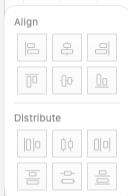
Align moves objects into line:
Align Left · Align Horizontal Centers · Align Right · Align Top · Align Vertical Centers · Align Bottom
Distribute spaces them evenly, using the edge you pick:
Distribute Left Edges · Distribute Horizontal Centers · Distribute Right Edges · Distribute Top Edges · Distribute Vertical Centers · Distribute Bottom Edges
Select the objects first. This trips everyone up once.
Group and ungroup
Cmd+G groups the selection; Cmd+Shift+G ungroups it. You need at least two objects to make a group.
Clicking any member selects the whole group. Double-click to step inside and select one member; Esc or a click outside steps back out.
Lock and unlock
Cmd+L locks; Cmd+Shift+L unlocks.
A locked object can't be dragged or edited, and most commands refuse to touch it. This is how you annotate on top of something without nudging it by accident. Selected, a locked object shows an orange dashed outline and no handles.
You can also right-click a connector and choose Lock or Unlock. With several things selected, right-click any one of the connectors and it locks or unlocks the lot. A locked connector's other right-click commands are greyed out.
Locking a container or swimlanes locks everything inside it too, text included. See Complex shapes.
Flip and rotate
| Command | Shortcut |
|---|---|
| Flip Horizontally | Ctrl+Cmd+H |
| Flip Vertically | Ctrl+Cmd+V |
| Rotate 90° Clockwise | Ctrl+Cmd+] |
| Rotate 90° Counterclockwise | Ctrl+Cmd+[ |
Flipping turns the artwork but leaves any label the right way up, which is what you want almost every time. Connectors stay on the same points, which flip with the artwork, so a flipped component's leads still meet its lines at the right ends.
For free rotation, drag the round handle above a selection; hold Shift to snap to 15°. For an exact angle, type it into the Transform panel.
Nudging and duplicating
| Action | Keys |
|---|---|
| Nudge 1 point | Arrow keys |
| Nudge 10 points | Shift + arrow keys |
| Duplicate in place (offset slightly) | Cmd+D |
| Copy | Cmd+C |
| Paste | Cmd+V |
| Paste in Place | Cmd+Shift+V |
Duplicate doesn't touch your clipboard, so you can keep something else copied while you stamp out repeats.
Repeated pastes step further down and right each time, so a stack of pastes doesn't land in a single pile.
Snapping
Two things help you line objects up as you drag:
- Snap to Grid — Cmd+Shift+", off by default. Set the spacing in View ▸ Grid Settings….
- Guides — drag them out from the rulers. Objects always snap to guides while the guides are visible.
See Helpers for both.
There are no automatic "smart guides" between objects. Grid and manual guides are what you've got.