Backgrounds
A background is the quickest way to change what a diagram feels like. The same boxes and arrows read very differently on a chalkboard than on graph paper.
Choosing one
Page ▸ Background… (Cmd+Alt+B), or the Page Background button near the bottom of the tool palette.
The sheet has two tabs, stacked the way they're drawn: Grid sits on top of Image & Color. It opens on Grid, which is covered in Grid. Click Image & Color for everything on this page.
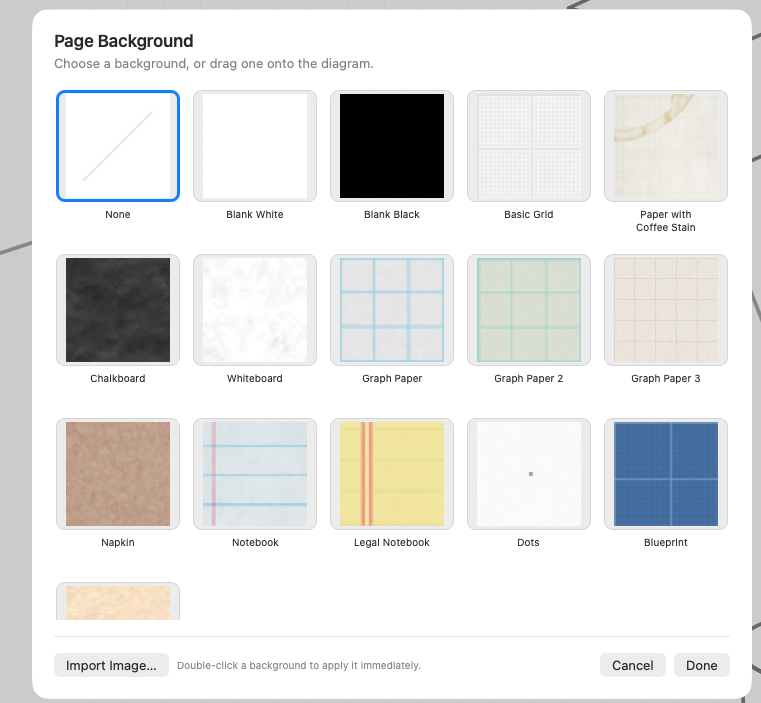
Click a tile to select it, then Done. Or double-click a tile to apply it straight away. Cancel leaves things alone. The sheet opens showing one row of backgrounds: scroll for the rest, or drag the sheet's edge taller to see more at once. The sheet remembers the size you leave it at.
The Preview on the right shows the page as it will look, with your grid drawn over the background. It's there on both tabs.
Backgrounds and the grid
Choosing a background never touches your grid. If you pick Notebook and the grid's still on, you'll see both in the preview, and it'll probably look like a mistake. Go to the Grid tab and choose No Grid, or keep both if that's what you're after.
Done changes the background and the grid together, and one Undo puts both back.
What ships with the app
Two solids — Blank White and Blank Black — and ten images:
Paper with Coffee Stain · Chalkboard · Whiteboard · Napkin · Notebook · Legal Notebook · Vanilla Paper · Handmade Paper · Fiber Paper · Watercolor Paper
There's also None — the box with a slash through it — if you want nothing at all behind your work.
No background means white paper, even in Dark Mode
A page with no background is plain white paper, whether your Mac is in Light or Dark Mode. Shapes start out with black lines and black words, and a canvas that turned dark with your Mac would swallow them. The panels around the page still go dark; the page doesn't. A dark page is always your choice: pick Blank Black, Chalkboard or a dark colour, and lighten your lines and words to suit. Exports and prints work as they always have.
Handmade Paper, Fiber Paper and Watercolor Paper are plain white on purpose. Tick Tint with a color and they become paper of whatever colour you like: cream, kraft brown, pale blue, anything.
There are no graph paper or dotted backgrounds, because the grid does that job now, and you can change its spacing and style.
Adjusting an image background
Pick an image background and its options appear under Background options.
- Layout — Actual Size, Tile, or Stretch to Size. Most of the paper textures tile; the ones that are a single sheet (coffee-stained paper, napkin, both notebooks) sit at actual size.
- Tint — tick Tint with a color and choose a colour to wash over the background.
- Tint opacity — how strong that wash is. It starts at 25%, which shifts the colour without hiding the texture. It does nothing until Tint with a color is ticked.
- Placement — normally the image starts at the page origin. Tick Set position and size to say where it starts (X, Y) and, for Stretch to Size, how big it is (W, H).
- Set to — two shortcuts that fill those four numbers in and tick the box for you. Fit to Artwork uses the area your shapes cover. Whole Page uses the page.
Placement matters most when you're stretching a background: it's the size the image is
stretched to. Type decimals the way your Mac's region writes them, such as 8,5 where
the decimal mark is a comma.
Solid colours
Pick Blank White or Blank Black and you get a Color control — which accepts any colour, not just white or black. A pale cream or a soft grey often reads better on screen than pure white.
Your own background image
Import Image… in the chooser takes a PNG, JPEG, TIFF, GIF, HEIC, WebP or BMP image (the same formats and limits as Import Image) and embeds it in the document, so the file travels with your diagram. Once imported, it gets the same Layout, Tint, Opacity and Reference Frame controls as the built-ins.
The previously imported image stays available in the chooser as Current / Imported Background, so you can switch away and come back.
Tip
Backgrounds are per page. If you want the same one everywhere, set it on one page and duplicate that page (Cmd+Shift+D) instead of choosing it again each time.
Backgrounds and export
When you export or copy as an image you get to decide whether the background comes along — there's an Include Page Background checkbox in the Export panel, and a separate Copy as Image without Page Background command in the Edit menu.
Handy when a chalkboard looks great in a presentation but you need a transparent PNG to drop into a document.