Connectors
A connector is a line that knows what it's attached to. Move the shape, the line follows. This is the bit that makes a diagram a diagram rather than a drawing.
Drawing one
Press L (or click the Connector tool) and drag from one point to another.
As you move near a shape, small hollow dots appear around it — the connection points. Bring the end within a few pixels of one and that dot fills in and gains a ring: let go now and the connector attaches there. Let go in open space and the end stays free, which is fine too.
The quick way
Hold Alt while the Select tool is active. Nearby shapes immediately show their connection points, and you can drag straight from one to another. When you let go, you're back in Select. No tool switching at all.
Hold Alt+Shift instead and you can keep clicking to build a multi-segment connector.
Dragging one out of the Library
Drag a UML relationship tile from the Library panel onto the page and you get a short connector, right where you let go, already selected. So does the plain Connector tile, if you keep it in Favorites. Then drag each end onto a shape to connect it. It's handy when you'd rather put the line down first and sort out what it joins later.
Grab the tile anywhere; you don't have to hit its line. Clicking a tile instead still chooses the tool, as before. See UML and C4 diagrams for the relationships themselves.
Changing a shape's connection points
A shape's connection points are the spots where connectors attach.
Right-click a single unlocked shape and choose Edit Connection Points. The same command is in the Edit menu, with the shortcut Cmd+Alt+E. The canvas greys out everything outside the shape's frame, and a small set of controls appears beside it. These edits affect only this shape in your diagram; the library and other copies stay as they are.
- Move a point: click and drag it. Points stay inside the shape's frame, even when the shape is rotated. You can move the standard points too.
- Add a point: click Add connection point, then click where you want it inside the frame. You can also press Enter to add it at the center. Clicking an existing point selects it instead of adding another; repeated center placement does the same. You can add up to 128 connection points per shape; Add is disabled at that limit.
- Delete a point: select it, then click Delete selected or press Del. With no point selected, Delete does nothing. Standard points can be deleted, and a shape can have no connection points.
Attached connector ends follow a point as you move it. Deleting that point leaves the connector ends in place and detaches them. If an attached connector is locked, unlock it before deleting the point.
Each completed change supports Undo (Cmd+Z) and Redo (Cmd+Shift+Z), including restoring deleted points and their attachments. Click Done, press Esc, or double-click outside the frame to finish and keep your changes. A single click outside does nothing. Enter also finishes when you are not adding a point.
For keyboard editing, Tab and Shift+Tab select the next or previous point. Arrow keys move the selected point by one diagram unit; hold Shift for ten.
To set the starting points for future copies of a library shape, use the
library Connection Points editor.
Those defaults are saved in the .sdlibrary package.
Straight, curved, squiggly, or right-angle
Click the small chevron on the Connector tool button and pick:
- Straight Connector — corners stay sharp.
- Curved Connector — smooth curve through the points.
- Squiggly Connector — drawn freehand, for when a diagram shouldn't look too sure of itself.
- Right-Angle Connector — runs only across and up-and-down, with square corners, and finds its own way between the two shapes.
The tool remembers your choice, and picking one also activates the tool.
Drew the wrong one? You don't have to start over. Right-click the line, choose Connector Type, and pick any of the four. Its ends, endings, colour and label stay as they are, but any points you added along the way go, because the line is redrawn fresh between its two ends. If you've selected several connectors, they all change together, and one Undo puts them all back. A squiggle made this way gets a wobble from the app rather than from your hand, so draw one yourself if you care how it wanders.
Right-angle connectors
A right-angle connector is the squared-off line you see in flowcharts and org charts. You don't place its corners. You say where it starts and ends, and it works out the route.
Pick Right-Angle Connector, then drag from one connection point to another. As you drag, a dashed line shows the route the connector will take. Let go and that's where it's drawn.
The line leaves each shape square to the side its connection point is on, keeps clear of both shapes, and turns halfway between them when it can. Move, resize or rotate either shape and the connector finds a new route, live, as you drag.
Moving part of the route
Sometimes the route it picks isn't quite the one you want. Select the connector with the Select tool and a small bar appears on each segment you can move. Point at one and the cursor becomes a two-way arrow; drag, and a dashed line shows where the connector will go. Let go to move it.
A segment only slides sideways — a level segment moves up and down, an upright one moves left and right — so the corners always stay square. If you drag the segment that touches a shape, the connector keeps a short stub at the shape and steps across to where you dropped it.
Once you've moved a segment, the connector keeps your route. It stretches when the shapes move, but it won't rearrange itself. If a shape moves so far that your route would have to pass back through it, the connector quietly uses its own route until the shape comes back. To hand the route back for good, right-click the connector and choose Reset Route. Dragging an end onto a different connection point also starts the route afresh.
Going around other shapes
By default a right-angle connector also goes around shapes that sit in its way. It ignores lines and freehand strokes, and any shape that contains one of its ends, such as a background panel behind the shapes it joins.
If you'd rather it take the direct route across whatever is there, right-click it and turn off Route Around Shapes. To change several at once, select them and use the same switch in the Stroke popover. New right-angle connectors start with whichever setting you chose last.
Opening these diagrams in an older version
Right-angle connectors arrived with a new version of the diagram file. Diagrams saved by this version need this version or later to open, so make sure anyone you share with has updated. Your older diagrams open exactly as before.
Multi-segment connectors
Sometimes a line has to go around things, and you want to say exactly where. (If square corners will do, a right-angle connector goes around things by itself.)
With a Straight or Curved connector, hold Alt as you release the mouse and the connector stays "open" — keep clicking to add more anchor points. Finish with a double-click or by pressing Enter. Click back on the first anchor to close the shape. Esc throws the whole thing away.
Editing a connector you've already drawn
Select the connector first. Then:
| What you want | How |
|---|---|
| Move a point | Drag it |
| Add a point | Click the + handle at a segment's midpoint, or drag a selected segment |
| Remove a point | Shift-click it (a connector always keeps at least two) |
| Straight ↔ curved at one point | Double-click the point |
| Re-attach an end | Drag the endpoint onto a different shape's connection point |
| Detach an end | Drag the endpoint into open space |
| Extend a free end | Alt-drag the endpoint |
| Move the whole line | Cmd-drag it (it needn't be selected first), or use the arrow keys. Ends attached along a line, like a message on a lifeline, slide along it. Ends joined to a point on a shape stay put, so drag those ends instead |
| Step between points | Tab and Shift+Tab |
| Nudge a point | Select it, then use the arrow keys |
| Label the line | Double-click it, or press Enter |
| Label an end | Double-click near that end, or right-click the line ▸ Add Start Label or Add End Label |
If an end is joined to a point on a shape, you can't drag the whole line somewhere else — move the shape, or drag that end. That's deliberate: the attachment is the whole point. An end attached anywhere along a line is different. A message on a UML lifeline slides up and down it with the whole connector, keeping its shape and staying attached, and stops where the line ends. If its two ends sit along lines that run different ways, such as an upright lifeline and one turned on its side, it can't slide either, so drag its ends instead.
A right-angle connector has no points of its own to add, remove or bend, so those rows don't apply to it. You can still drag, re-attach and detach its two ends, and you move its segments instead.
Labels at the ends
Besides the label in its middle, a connector can have one label beside each end, for a UML multiplicity, a role name or anything else that belongs to that end. Right-click the line and choose Add Start Label or Add End Label, or select the connector and double-click the line near an end, just off its end point, and type straight away; Cmd+Enter or a click elsewhere finishes. A label you leave empty is removed. An end label holds up to 200 characters, plenty for a multiplicity and a role name; the middle label takes up to 500 as you type.
An end label is measured from its end, so it stays beside it however long the line gets, and it always keeps clear of the line and the arrowhead drawn there. Double-click it to change its words, and style it as you would the middle label: with a connector selected, the font, size, colour and highlight controls change all its labels together. To remove one, double-click it, delete its words and finish. Copying, pasting or duplicating a connector keeps its end labels.
A BPMN file has nowhere to keep end labels, so File ▸ Export as BPMN… leaves them out and says so in its summary. The diagram keeps them.
Arrowheads, weights and patterns
Right-click a connector for the full set of options, or use the Shape Properties panel. With several connectors selected, right-click any one of them: they all stay selected, and the weight, pattern and endings you choose apply to all of them.
Line Weight: 1, 2, 3, 4, 6, 8 or 12 points from the context menu, or type any value from 1 to 100 in the panel.
Line Pattern: Solid, Dashed or Dotted.
Start Ending and End Ending, independently:
None · Stop · Arrow · Hollow Arrow · Circle · Filled Circle · Diamond · Filled Diamond · Half Circle · Crow Foot · One · One and Only One · Zero or One · One or Many · Zero or Many · Filled Arrow · Slash · Circle Plus · Cross · Half Arrow
In the panel, the start and end buttons open a grid showing every ending at once.
You can also change an ending without leaving the canvas. Select a connector and a small button appears beside each end, showing that end's current ending; click it for the same grid. Or right-click an end and its endings are at the top of the menu. If you'd rather not have either, turn them off under Connectors in Settings.
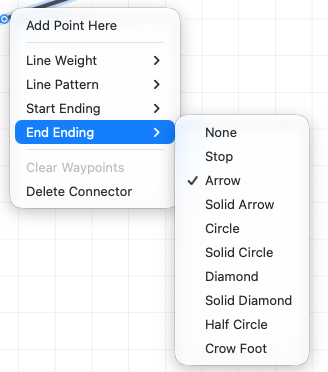
Crow Foot and the five after it are there for the database people. You know who you are.
Other connector commands
Right-clicking gives you a few more things depending on where you click:
- On a point: Point Type ▸ Straight / Curved, Remove Point, Detach Start, Detach End
- On a segment: Add Point Here
- Anywhere on the line: Add Start Label and Add End Label, or Edit Start Label and Edit End Label once it has them
- Anywhere on the line: Connector Type, Clear Waypoints (straightens it back out) and Delete Connector
- On a right-angle connector: Route Around Shapes and Reset Route take the place of the point commands
- Anywhere on the line: Lock or Unlock, for the line and everything selected with it. A locked line's other commands are greyed out until you unlock it.
Hops and rounded corners
Two settings change how lines are drawn, without changing the lines themselves. Find them in Settings ▸ Connectors. Both start off.
- Hop over lines behind lifts a connector over the connectors behind it in a small arc, so you can see which way each line goes at a crossing. Only straight runs hop, and a crossing too close to a corner or an end stays as it is. To change which of two lines hops, select one and use Arrange ▸ Bring to Front.
- Round right-angle corners gives a right-angle connector's turns a small curve.
They add no points to a line, so it edits exactly as before. They belong to your Mac rather than to a diagram: exports follow your setting, and the same diagram on another Mac follows that Mac's.
One thing to know about layering
Shapes and connectors share a drawing order. Select a connector and use the Arrange menu's Bring to Front, Bring Forward, Send Backward, or Send to Back commands to control what it overlaps. Send a connector behind shapes when you want its ends to tuck beneath their artwork.