Quick start
You've got ten minutes and half of that is going to the coffee. Fine. Here's the whole app in the time you've got left.
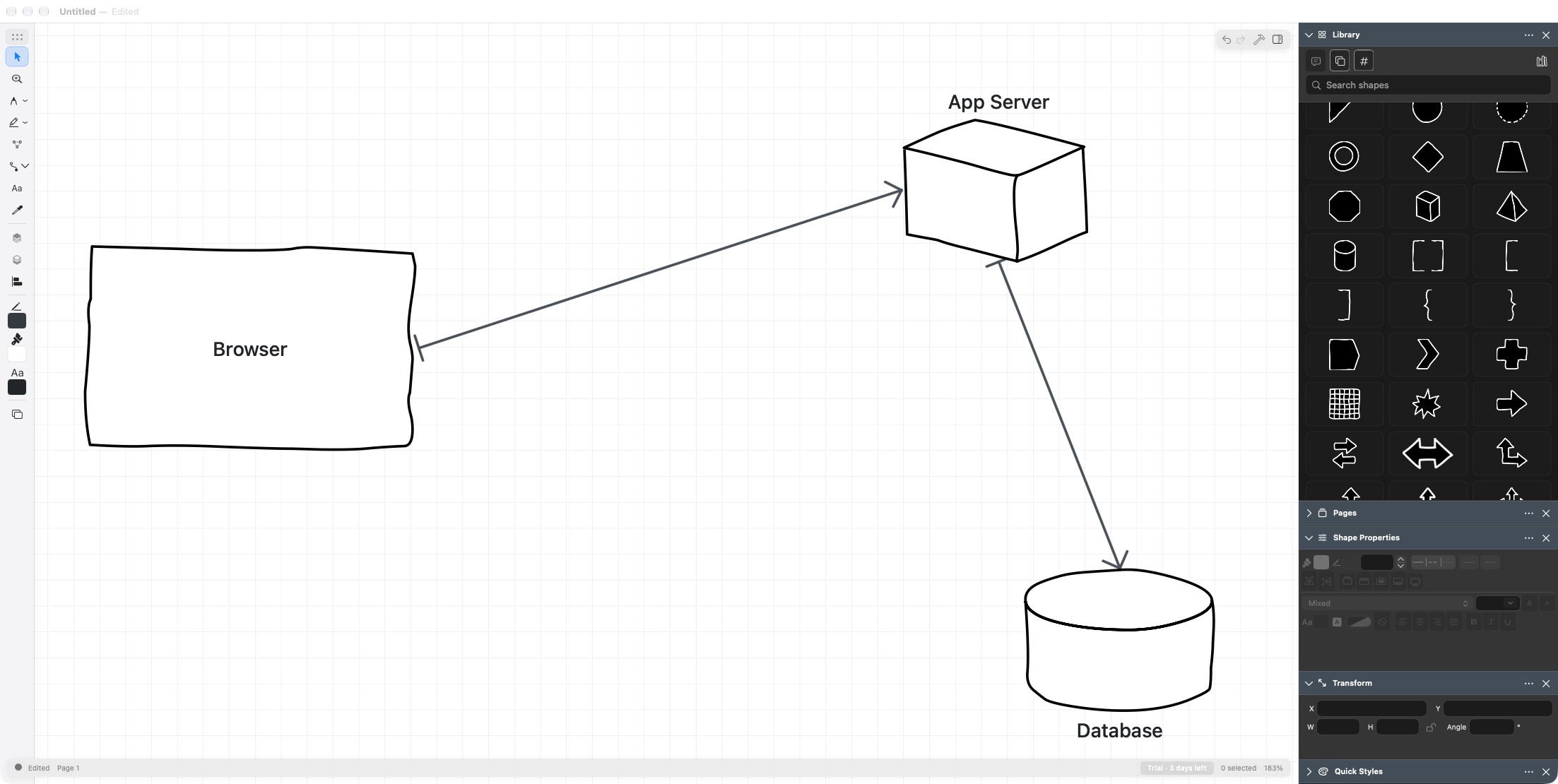
1. Accept the agreement
On first launch in the direct build, accept the licence agreement. That starts your free 7-day trial and opens the editor with everything available, no card and no account. The Mac App Store build is paid for up front, so it has no trial and opens ready to use.
More detail: Licence and trial.
2. Put a shape on the page
The Library panel is on the right, already open. Find a shape you like and either:
- drag it onto the canvas, right where you want it, or
- double-click it, and it lands in the middle of what you can see.
Can't find what you want? Type in the Search shapes box at the top of the panel. Press Esc to get back to the full library list.
The fastest shape in the app
Press Alt+Space anywhere to open Quick Library Search. Type a few letters, press Enter, and the shape lands in the middle of your canvas. No menu, no button. It's almost mysterious.
3. Connect two shapes
Press L for the Connector tool. Move the pointer near a shape and little blue dots appear around its edge — those are connection points.
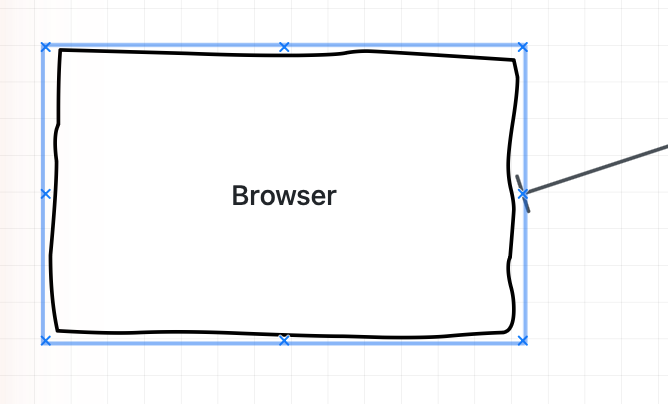
Drag from a dot on one shape to a dot on another. As you get close, the dot you're heading for fills in and gains a ring; let go there. Now the two are genuinely attached: move either shape and the line follows.
Tip
Don't want to switch tools? Hold Alt while the Select tool is active and drag from one shape to another. You get a connector and your old tool back.
4. Say something
Double-click any shape to type a label on it. Double-click a connector to label the line. Press Cmd+Enter when you're done, or Esc to throw it away.
Want free-floating text instead? Press T and click. Later, click the text once with Select to edit it. Its outer border and handles move, resize and rotate the text box.
5. Make it your colours
Select something, then use the three colour chips near the bottom of the tool palette — stroke, fill, and text. Click one and you get a palette, a colour picker, and a grid of textures for that hand-drawn look.
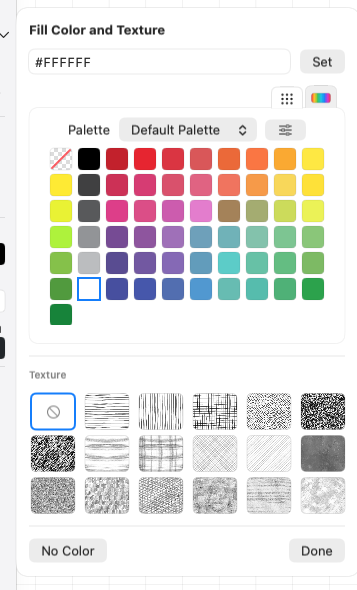
Found a combination you'll reuse? Select the shape and add it to the Quick Styles panel, then apply it to anything with one click.
6. Get it out of the app
Cmd+Shift+E opens Export. Pick PNG, PDF or SVG, choose whether you want the page background included, and save.
In a hurry? Select what you want and press Cmd+Shift+C to Copy as Image, then paste straight into Slack, an email, or whatever's waiting.
That's the whole thing
Seriously. Shapes, connectors, labels, colour, export. Everything else in this guide is detail you can pick up when you need it.
When you do need it:
- The window — what all those panels are
- Shapes — libraries, searching, favourites
- Connectors — curves, arrowheads, multi-segment lines
- Keyboard shortcuts — the whole list