Helpers
Small things that help you. I call them helpers because I'm still not sure what else to call them. They all live in the View menu and they'll always be there for you.
Zoom
| Command | Shortcut |
|---|---|
| Zoom In | Cmd++ |
| Zoom Out | Cmd+- |
| Actual Size | Cmd+0 |
| Fit Artwork | Cmd+1 |
| Fit Selection | Cmd+2 |
The range is 15% to 400%, and the current percentage sits in the status bar.
Other ways to get there:
- Zoom tool (Z) — click to zoom in, Shift-click to zoom out, or drag a box to zoom to exactly that area.
- Pinch on a trackpad.
- Hold Cmd and scroll. It zooms around the pointer, so point at the part you want a closer look at. Ctrl works too.
- Pan tool (H) then Shift-drag sideways to scrub the zoom smoothly.
Fit Artwork is the one you'll use most. It's the "where did my diagram go" button.
Panning
- Hold Space and drag.
- Middle-mouse drag.
- Scroll wheel or two-finger scroll. Add Shift to scroll a mouse wheel sideways.
- The Pan tool (H).
If a Magic Mouse or trackpad keeps moving the diagram when you didn't mean it to, turn off Scroll to pan in Settings ▸ Canvas. Scrolling then leaves the diagram alone, and the other ways still work.
Overview
Cmd+Shift+O puts a small navigator in the corner of the canvas showing your whole diagram in miniature, with a rectangle marking what you're currently looking at.
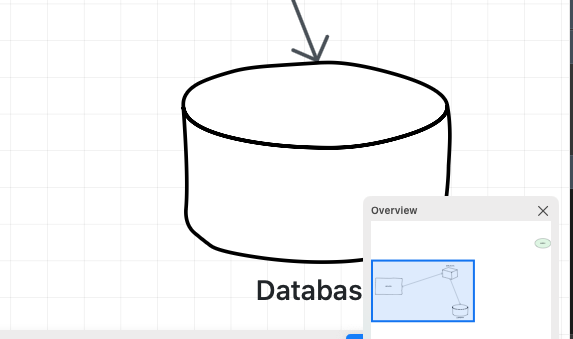
Drag that rectangle to zip around. Much better than scrollbars. The arrow keys move it a quarter of a screen at a time, and the × hides the panel again.
Grid
Show Grid — Cmd+'. On by default.
Snap to Grid — Cmd+Shift+". Off by default.
Each page has its own grid, and the grid is saved with the document. Hide it on a page and it's still hidden next time you open the file. That also makes Show Grid a real edit: it can be undone, and it marks the document as changed.
Grid Settings
View ▸ Grid Settings… opens the Page Background sheet on its Grid tab. (Page ▸ Background… opens the same sheet.)
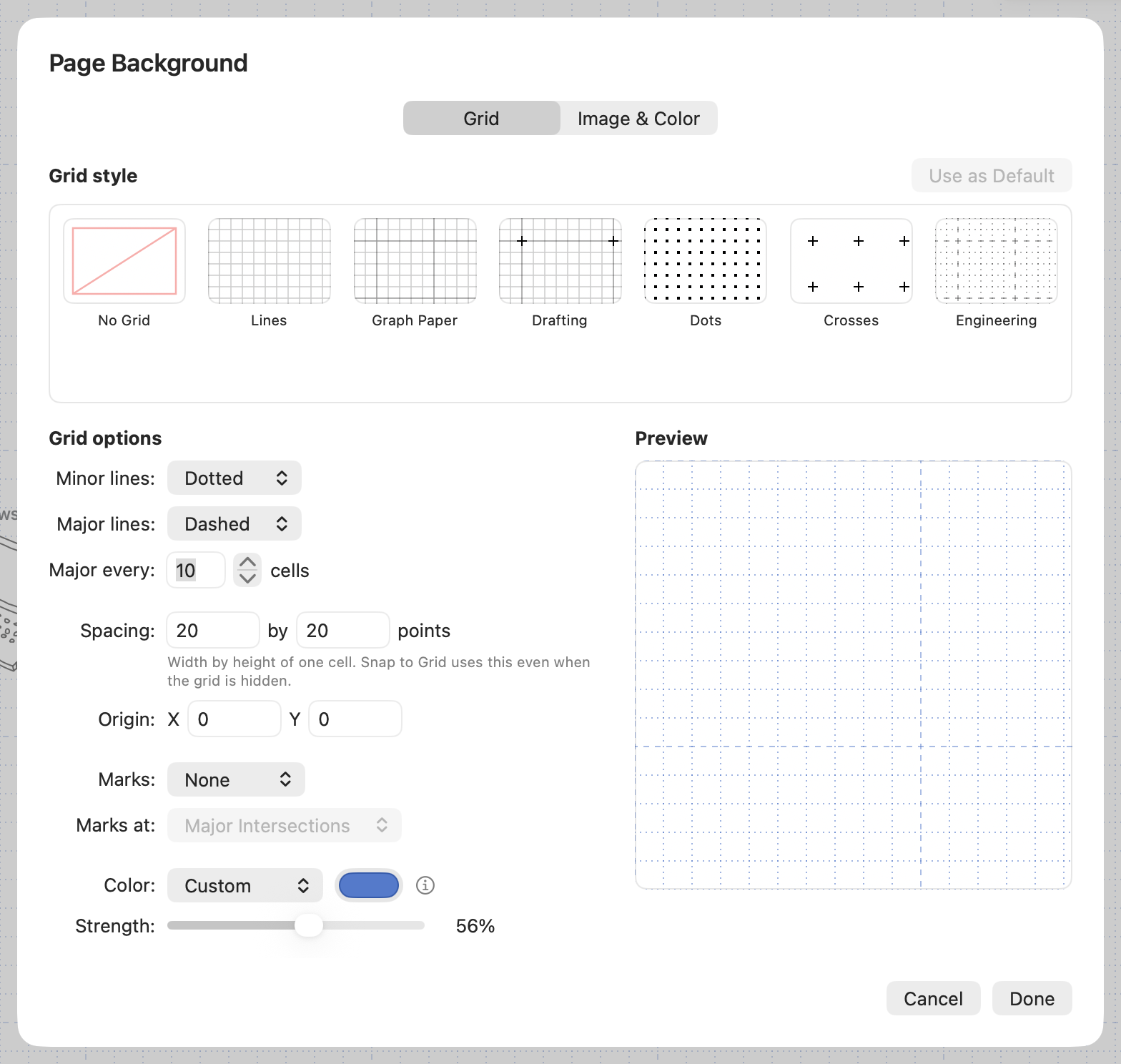
The first tile, No Grid, hides the grid. Pick any other tile and it's back.
Start with the row of presets:
| Preset | What you get |
|---|---|
| Lines | The plain grid. This is the default. |
| Graph Paper | Fine lines with a stronger line every 5 cells |
| Drafting | Fine lines, a stronger line every 8 cells, and a small cross where the strong lines meet |
| Dots | A small square dot at every corner, no lines |
| Crosses | A small cross every 4 cells, no lines |
| Engineering | Dotted fine lines with dashed stronger lines every 5 cells |
Click one and the controls below fill in. Then adjust whatever you like:
- Minor lines run along every cell. Major lines replace every nth one and draw a little stronger; Major every sets n. Each can be None, Solid, Dashed or Dotted.
- Spacing — the width and height of one cell (4 to 10,000 points, default 20 by 20), and Origin, where the grid starts counting from.
- Marks — dots or crosses, and Marks at puts them at every intersection or only where major lines cross.
- Color — Automatic is dark on a light page and light on a dark solid colour; the ⓘ beside it spells this out. Over a dark background such as Chalkboard, pick a Custom colour instead. Strength is how loud the whole grid is.
The Preview on the right shows your grid over the page's actual background, at 100%, so you can see whether they get along before you click Done.
Use as Default saves this grid's style and spacing for new documents on this Mac. It takes effect straight away, whether you then click Done or Cancel. A green tick on a style tile marks the one new documents currently start with. Diagrams you've already made keep their own grids. A new page takes its grid from the page you were on when you added it.
While the sheet is open, Show Grid in the View menu is unavailable. Use the No Grid tile, or any other style, instead.
Zoom a long way out and the finest lines drop away rather than turning the canvas grey. They come back as you zoom in.
Grid and snapping
Snap to Grid uses the spacing and nothing else. It doesn't care what the grid looks like, or whether it's showing at all. So a grid with only major lines still snaps to every cell in between.
Grid in exports
Normally the grid stays out of exported files. Tick Include Grid in the Export panel when you want it in the picture. It's never printed, and Copy as Image leaves it out.
Rulers and guides
Rulers — Ctrl+Cmd+R. Strips along the top and left edge with numeric ticks.
With rulers showing, drag from a ruler onto the canvas to pull out a guide. Guides are per page.
| Action | How |
|---|---|
| Create a guide | Drag from the top or left ruler |
| Move one | Drag it |
| Delete one | Click to select, then Del |
| Hide them all | View ▸ Guides ▸ Show Guides (Ctrl+Cmd+;) |
| Remove them all | View ▸ Guides ▸ Remove All Guides |
Objects snap to guides whenever guides are visible. Hide the guides and the snapping stops with them.
Note
Version 4's rulers couldn't do this. Guides are new in 5, and I'm pleased about it.
Full screen
Window ▸ Enter Full Screen — Ctrl+Cmd+F. Standard macOS behaviour.
For showing a diagram to someone, though, you probably want Presentation instead — it hides all the tools as well.
Panel appearance
View ▸ Panel Appearance ▸ Follow System / Light / Dark controls the panels. The Tool Palette and other panels follow your Mac's appearance by default; choose Light or Dark to keep a manual appearance across system changes.
Putting it all back
Settings ▸ Reset Workspace… restores every panel position, size and order, plus the tool palette placement. Your diagrams are untouched.