The window
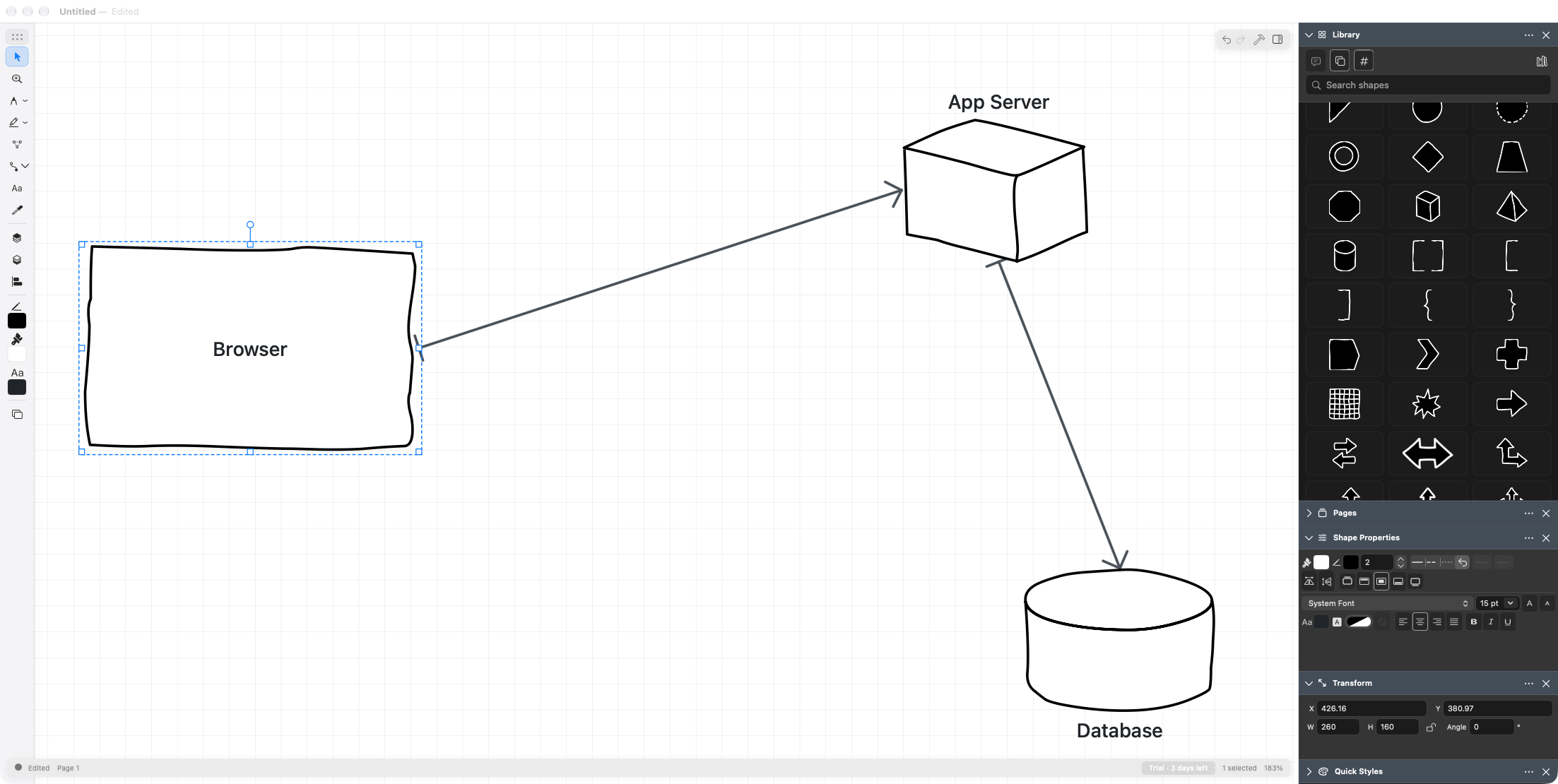
There are only four things in the SimpleDiagrams window: the canvas, the tool palette, the panels, and the status bar. Learn where they are once and you're set.
The canvas
The big area in the middle. It's infinite — there's no page edge to bump into and no "fit to page" to fight with. Draw wherever you like and worry about output size later, when you export or print.
A few things float over the canvas:
- Undo and redo buttons, top right.
- A hammer button that shows and hides the tool palette.
- A sidebar button that shows, hides and repositions every panel.
- The Overview navigator, if you've turned it on (Cmd+Shift+O).
The tool palette
A narrow strip of tools, docked on the left by default. Top to bottom:
| Tool | Key | What it does |
|---|---|---|
| Select | V | Click, drag, resize, rotate. Your home base. |
| Zoom | Z | Click to zoom in, Shift-click to zoom out, drag a box to zoom to it. |
| Pencil | P | Freehand, smoothed. |
| Marker | M | Freehand, in see-through ink with a choice of tip. |
| Polyshape | G | Click point to point to build a shape. |
| Connector | L | Lines that attach to shapes. |
| Text | T | Click or drag a text box. |
| Eyedropper | I | Copy a style from one object to another. |
Below the tools: Bring to Front, Send to Back, Align or distribute, then the three colour chips (stroke, fill, text), then Page Background, then a ⋯ menu for moving the palette around. You can also use Window ▸ Tool Palette to show or hide it (Cmd+Alt+6), and Window ▸ Tool Palette Position to dock or float it.
The Tool Palette follows the same appearance as the other panels. In Dark mode, its tools are white on a dark background. Choose View ▸ Panel Appearance to follow your Mac or set Light or Dark manually.
The Pencil, Marker and Connector buttons have a small chevron. Click it for options — line weight for the drawing tools, and Straight / Curved / Squiggly / Right-Angle for connectors.
Tools with no button
Three more tools exist on the keyboard only: Rectangle (R), Ellipse (O) and Pan (H). Click to drop a rectangle or ellipse at a default size, or drag out the exact frame you want.
Tool letters only work when the canvas has focus and you're not holding Cmd, Ctrl or Alt.
The panels
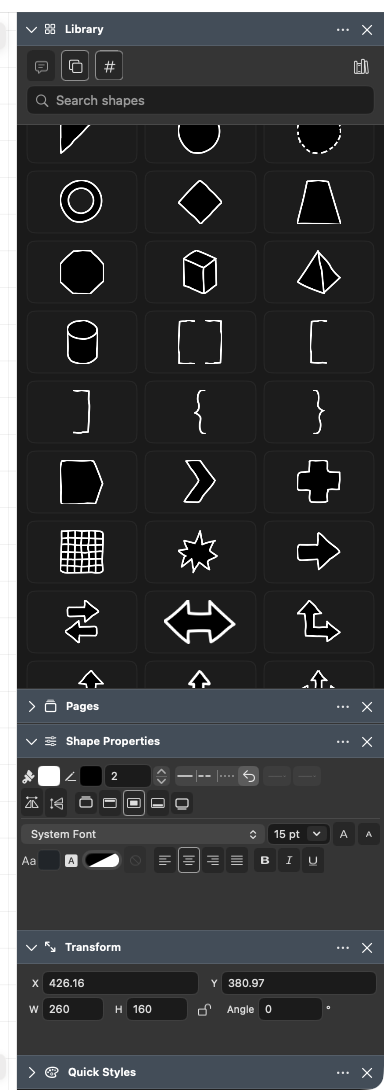
Five panels, docked on the right. Only Library is open the first time you run the app; the rest are collapsed so they don't crowd you.
| Panel | Shortcut | What's in it |
|---|---|---|
| Pages | Cmd+Alt+1 | Every page in the document, with thumbnails. |
| Library | Cmd+Alt+2 | Shapes, search, favourites, library management. |
| Transform | Cmd+Alt+3 | Exact X, Y, width, height and angle. |
| Shape Properties | Cmd+Alt+4 | Fill, stroke, line weight, fonts, text position, flips. |
| Quick Styles | Cmd+Alt+5 | Saved stroke/fill combinations. |
Two more panels hold information instead of appearance: Shape Data (Cmd+Alt+7) for the selected shape, and Page Data (Cmd+Alt+8), a table of every shape on the page that opens below the diagram. Both start hidden. See Shape data.
Shape Properties edits whatever is selected. Its controls come in two labelled groups: Shape (fill, stroke, line weight and pattern, connector ends, flips) and Text. With nothing selected, its controls — including the Fill and Stroke chips — are dimmed until you select something.
Floating, Shape Properties is a fixed-size window that fits its controls, a bit like a toolbar. Docked, its controls wrap to fit the column.
Shape Properties and the settings button
You change a shape in two places, and they work together.
Shape Properties shows what every shape has, whatever kind it is: stroke, fill, line weight and pattern, flips, and the text. These work on every shape, including the special ones below, so keep using them.
The settings button is the small button that appears beside some shapes when you select one on its own. Click it for the settings only that kind of shape has:
- Rings, flows, pyramids, cycles and gauges: how many parts, and how they're drawn, such as a ring's sections or a gauge's value.
- Images: Image Layout, Background and Border.
- Lifelines: Ends in Destroy Mark.
Shapes without their own settings have no button.
Using the keyboard or VoiceOver? Select the shape and choose Format › Shape Settings…, or Shape Settings… in its right-click menu. The same settings open beside the shape.
Not sure what a button does? Hold the pointer over it for half a second and its name appears on a small yellow note. Click, type or scroll and the note gets out of your way.
Moving panels around
Each panel is in one of four states: Dock on Left, Dock on Right, Float, or hidden. Three ways to change that:
- Drag the panel's header. Drop it elsewhere in the dock to reorder (you'll see a blue insertion line), drag it to the other side of the window, or pull it off entirely to float it as its own little window.
- Click the ⋯ button in the panel header.
- Use the Window menu — open Window ▸ Panels, choose a panel, then Dock on Left, Dock on Right, Float, or Hide. When hidden, Show restores the panel's previous position. Choosing a docking position or Float also shows a hidden panel.
A check beside a panel's name means it's visible. Inside its submenu, a check marks its current position. The keyboard shortcuts above still show and hide panels without changing their remembered positions.
Click a docked panel's header to collapse or expand it. Drag the divider between the dock and the canvas to make the whole column wider or narrower.
If it all goes wrong
Settings ▸ Reset Workspace… puts every panel back where it started. Your diagrams aren't touched — this is layout only.
Dark panels, light panels
The panels follow your Mac's light or dark appearance by default. To keep them in one appearance regardless of the system setting, choose View ▸ Panel Appearance ▸ Light or Dark. Choose Follow System to restore automatic switching. The document canvas and artwork are unaffected: a page with no background stays white paper in either appearance (see Backgrounds).
The status bar
The thin strip along the bottom tells you, left to right:
- whether the document is Saved, Edited, or Imported — save to convert
- the current page name
- in the direct download, your trial or purchase status, if you haven't bought yet
- how many objects are selected
- the current zoom percentage
The Tool Palette and panels in one menu
If you've hidden something and can't remember which menu it lives in, click the sidebar button at the top right of the canvas. Every panel is listed there with Show/Hide, Dock on Left, Dock on Right and Float.