Shapes
Moving shapes from a library onto the page is most of what you'll do in SimpleDiagrams. Here's everything about that.
What ships with the app
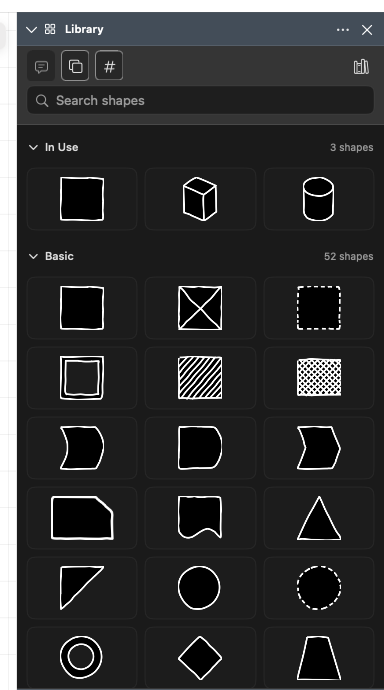
Eight libraries of drawn shapes, plus three sections of shapes the app draws for you:
| Library | Shapes | What it's for |
|---|---|---|
| Basic | 62 | The everyday sketch set — boxes, people, servers, clouds, and the flowchart regulars. |
| Complex Shapes | 12 | Four general shapes (Container, Swimlanes, Table and Callout), six built from parts (Ring, Flow, Pyramid, Cycle, Gauge and Audience), a Pie ready to relabel, and an Entity Table, all drawn by the app at whatever size you make them. See Complex shapes. |
| Database | 1 | An Entity Table, plus five entity-relationship lines. See Database diagrams. |
| Notes and Cards | 6 | Sticky Note, Index Card, Taped Note, Tag, Notebook Page and Pinned Note. See Notes and cards. |
| Basic (Clean) | 45 | The same idea with a tidier line. |
| 3D Basic (Hatch) | 74 | Hatched, slightly isometric versions. |
| Word Bubbles | 50 | Speech and thought bubbles in various moods. |
| Biz | 84 | Business roles, meetings, funding, product delivery, growth metrics, currency coins and a trophy, alongside charts, buildings and documents. |
| UI Flow | 123 | Pages and phone screens, individual controls, touch gestures and AI features, for interface flows. |
| BPMN | 89 | Business process diagrams: events, gateways, tasks, sub-processes, data and messages, plus a plain task and gateway, a ready-made pool and expanded sub-process, and six flows. See BPMN diagrams. |
| UML | 8 | Actors, activity nodes, Terminate, notes and packages, plus five ready-made boxes, sequence-diagram lifelines and frames, and ten relationships. See UML and C4 diagrams. |
You can add your own, too — see Your own libraries.
Getting a shape onto the page
Three ways, all obvious once you've done them:
- Drag the shape from the panel onto the canvas, right where you want it.
- Double-click the shape and it lands in the middle of what you can see.
- Click the shape, then press Enter (or Space). Same result as a double-click, minus the double-click.
Changed your mind mid-drag? Press Esc before you let go.
Finding the shape you want
Search in the panel
Type into Search shapes at the top of the Library panel. It matches shape names, library names and keywords. While you're searching, a Search In picker lets you narrow to All Libraries, Favorites, or one specific library.
A shape that sits in more than one library, such as the Entity Table, is listed once, from its home library, whenever that library is part of the search.
Press Esc or click the × to get back to the normal library list.
Cmd+F ("Find in Libraries…") does the same thing from anywhere — it opens the Library panel and puts the cursor in the search box.
Quick Library Search
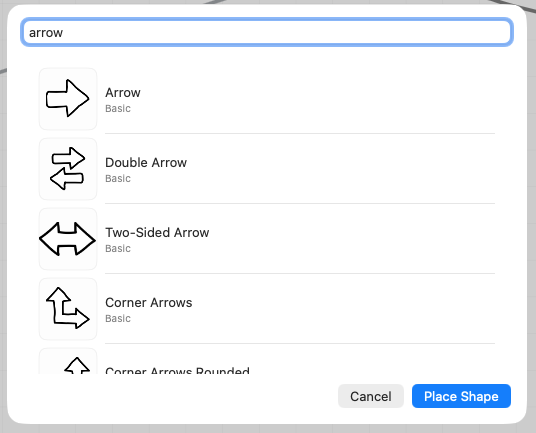
Press Alt+Space. A small window appears with the cursor already in the field. Type, use Up and Down to pick from the results, and press Enter to drop the shape in the middle of your canvas. Esc closes it.
It's also in the menu as Edit ▸ Quick Library Search…, and Place Shape does the same as Enter. The keyboard is the point, though: it's the fastest thing in the app.
It finds the complex shapes too, and the ready-made ones in other libraries, such as UML's boxes and BPMN's Pool and Task. It doesn't find connectors, UML relationships, BPMN flows or database relationships: pick those in the Library panel.
Favourites
Right-click any shape and choose Add to Favorites. Favourites get their own section at the top of the Library panel, and you can search just within them.
Keep it to the ones you genuinely reach for. The panel gets cluttered fast and that's good for nobody. (There's a hard ceiling of 512, but if you're near it you have bigger problems.)
To remove one, right-click it and choose Remove from Favorites.
The three little toggles
At the top of the Library panel are three buttons worth knowing:
- Show shape tooltips — hover a shape to see its name. Off by default. Complex-shape tiles, the ones wearing a ✱, show theirs even with this off, because the tooltip is what explains the ✱.
- Show shapes in use — adds an In Use section listing every shape already on the current page, so you can place another of the same thing without hunting. On by default.
- Show shape counts — the "N shapes" number on each library heading. On by default.
Some long libraries, such as BPMN and UML, sort their shapes under small headings, like Events, Gateways and Tasks, so they're quicker to scan. To see every library as one block of shapes instead, turn off Show shape groups in Settings › Library and Panels.
Contact sheets
Right-click a library's heading and choose Contact Sheet… to get a printable overview of everything in it. You can page through it, print it, or save it as a PDF. Handy when you're deciding what to use, or when you want a cheat sheet on the wall.
Selecting and moving things
| Action | How |
|---|---|
| Select | Click it |
| Add to the selection | Shift-click |
| Select several | Drag a box on empty canvas — only shapes completely inside get selected |
| Add with a box | Shift-drag |
| Select everything | Cmd+A |
| Clear the selection | Esc when no edit or operation is active |
| Move | Drag it |
| Nudge | Arrow keys (1 point), Shift + arrow (10 points) |
| Duplicate | Cmd+D |
| Delete | Del |
With the canvas focused, Esc clears selected shapes, groups, connectors, or guides without deleting anything or adding an Undo step. If you're editing text or points, Escape backs out of that edit first. Inside a group, it steps out one level and selects the group you just left; press Escape again at page level to clear the selection.
To customize where connectors attach, select one unlocked shape and press Cmd+Alt+E, or choose Edit Connection Points from its context menu. See Changing a shape's connection points for adding, moving and deleting points, the 128-point limit, and Undo.
Resizing and rotating
Select a single shape and you get eight handles around it, plus a round rotate handle above it.
- Drag a handle to resize.
- Shift + drag keeps the proportions.
- Alt + drag resizes from the centre instead of the opposite corner.
- Drag the round handle to rotate. Hold Shift to snap to 15° steps.
When a shape is too thin on screen to tell its corner handles apart, it shows only its four side handles, so you grab the edge you meant. UML's fork / join bar, which only ever gets longer, shows just its two end handles.
Select more than one shape and you get four corner handles that resize the whole group proportionally.
For exact numbers, open the Transform panel (Cmd+Alt+3) and type X, Y, width, height and angle directly. There's a lock button there to keep width and height in proportion while you type.
Select a group and the Transform panel works on the whole group: type an X, Y, width, height or angle and the group moves, resizes or turns as one. A group always keeps its proportions, so the shapes in it never stretch.
Parts that keep their size
A few shapes have a part that stays the same size, in the same place, however large or small you make the shape. The icon in the top-left corner of a BPMN task is one: make the task wide enough for a long name and the icon stays small in its corner instead of stretching across the box. The plus at the bottom of a collapsed sub-process and the short arms of a text annotation's bracket behave the same way.
If you make such a shape smaller than it was drawn, the part shrinks with it, evenly, so it never spills out of the shape or looks squashed. Flip or rotate the shape and the part goes with its corner: a flipped task shows its icon, mirrored, in the top-right.
Flipping and rotating by 90°
These live in the Arrange menu:
| Command | Shortcut |
|---|---|
| Flip Horizontally | Ctrl+Cmd+H |
| Flip Vertically | Ctrl+Cmd+V |
| Rotate 90° Clockwise | Ctrl+Cmd+] |
| Rotate 90° Counterclockwise | Ctrl+Cmd+[ |
The Shape Properties panel has flip buttons too, if you'd rather click than remember.
Groups
Select two or more things and press Cmd+G to group them. Cmd+Shift+G ungroups.
Clicking any member of a group selects the whole group. To get at one thing inside, double-click it — that enters the group and selects just that member. Click outside the group's frame, or press Esc, to come back out.
Locking
Cmd+L locks the selection so you can't move or edit it by accident — useful for a background diagram you're annotating on top of. Cmd+Shift+L unlocks.
Locked objects ignore dragging and refuse most commands, which is the point.
You can tell when something's locked: select it and you get an orange dashed outline and no handles. Try to drag it anyway and a note says why it won't budge, with whatever is doing the locking outlined in orange. Orange always means locked. Red means something is about to be removed, which is a different conversation.
Notes and cards
The Notes and Cards section has six notes: a Sticky Note, an Index Card, a Taped Note, a luggage Tag, a Notebook Page torn from a spiral pad and a Pinned Note. Drag one out, or double-click its tile, then double-click the note to type on it. Your words sit clear of the tape, the hole and the pin, and they move with them when you flip the note.
Each one arrives in its own colours. Hold Alt as you drag to give it your current colours instead. After that it's an ordinary note: move it, resize it, recolour it and type on it like anything else. The tape, string and pin keep their own colours.
Notes sit on the page with a very slight shadow. If you'd rather not have it, turn off Show drop shadow on notes and cards in Settings.
A note keeps the look it was placed with. Want a tag instead of a sticky note? Drag out a tag and move your words across.
Process, UML and other diagrams
BPMN, UML and the shapes the app draws for you each have a page of their own: BPMN diagrams, UML and C4 diagrams, and Complex shapes.
Making a library shape out of your own drawing
Draw a closed shape with the Polyshape tool, select it, right-click and choose Add to Library…. Give it a name, pick a library, and it's yours to reuse. See Your own libraries.