Exporting and printing
Export
File ▸ Export… — Cmd+Shift+E.
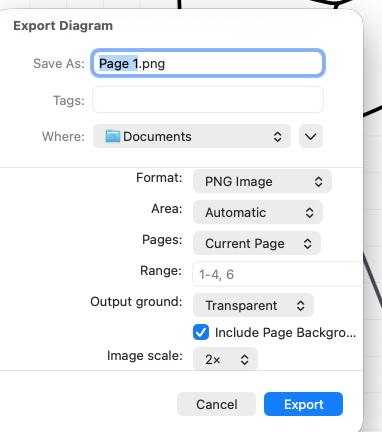
For a file a BPMN modeler can open, choose File ▸ Export as BPMN… instead.
| Option | Choices |
|---|---|
| Format | PNG Image, PDF Document, SVG Image, JPEG Image |
| Area | Automatic, Selection, Artwork, Export Frame |
| Pages | Current Page, All Pages, Page Range |
| Range | e.g. 1-4, 6 |
| Background | Transparent or White |
| Include Page Background | On by default |
| Include Grid | Off by default |
| Image scale | 1×, 2×, 3× — PNG and JPEG only, defaults to 2× |
Which format?
PNG for Slack, email, docs, anywhere that just needs an image. Leave the scale at 2× so it stays sharp on a Retina screen.
PDF for printing and for anything that has to stay crisp at any size. Multi-page exports come out as one PDF.
SVG for handing to a designer, or for editing elsewhere.
JPEG for the places that ask for one, such as some web forms, email tools and print shops. It's the same bitmap image as a PNG, a smaller file for a large diagram, and always on white: JPEG can't be transparent, so Background shows White while JPEG is chosen.
Area and pages
Automatic sizes the output to the artwork, unless you've set an Output Size on the page, in which case it uses that.
Selection is only offered when you've actually selected something and you're exporting the current page.
Export Frame uses the bounds you set with Page ▸ Set Export Frame to Selection.
For PNG, JPEG and SVG, exporting more than one page creates a folder of numbered files
(001-<page>.png and so on). PDF is always a single file.
Transparent or white
Transparent is the default and is usually right for PNG and SVG. Choose White when the thing you're pasting into has a dark background and a transparent PNG would disappear into it. A JPEG is always white.
Untick Include Page Background if you want the shapes without the chalkboard.
The grid
Tick Include Grid to draw each page's grid into the export, in PNG, JPEG, PDF and SVG. It comes out as it looks on the canvas at 100% zoom, scaled along with the diagram if the page has an Output Size. A page whose grid is hidden exports without one, whatever this box says.
It's off to begin with, and the Export panel remembers what you chose last time.
Still typing?
Export and Print include a label you're still typing, so there's no need to press Enter first. If the app can't take those words, say a table cell past its 2,000 characters, the export or print waits and a note says why. The same goes for Save and autosave. Your words stay where you typed them, so you can shorten them or copy them somewhere else.
Copy as Image
Often faster than exporting:
- Edit ▸ Copy as Image — Cmd+Shift+C
- Edit ▸ Copy as Image without Page Background
Copies your selection (or the whole page if nothing's selected) at 2× with a transparent background, ready to paste into whatever's waiting. It goes onto the clipboard as PDF, PNG and TIFF so the receiving app can take its pick.
This is the one to use for "can you send me that diagram" messages.
Printing
File ▸ Page Setup… — Cmd+Shift+P File ▸ Print… — Cmd+P
Printing outputs every page of the document.
If a page has an Output Size set, its paper size and orientation seed the print dialog for you, with zero margins — so an A4 page set up in the app arrives as A4 at the printer without you re-picking anything.
If you haven't set an output size, Print starts from the paper, orientation and scale you chose in File ▸ Page Setup…, and you can still change them in the print dialog. Setting the output size first generally gives a more predictable result.
Print to PDF
macOS's own PDF ▸ Save as PDF in the print dialog works fine, but Export ▸ PDF Document gives you the area and background options above, which is usually what you actually wanted.
What you can do without buying
In the direct download, if your trial has ended and you haven't bought a licence, the app becomes view-only — but opening, viewing, copying, saving, exporting and printing all keep working. You can't create or edit, but you'll never be locked out of your own diagrams.
See Licence and trial.